

Adding Services
Services are the core of your ShopStable listing. Here's how to add and manage them effectively.
Creating a Service
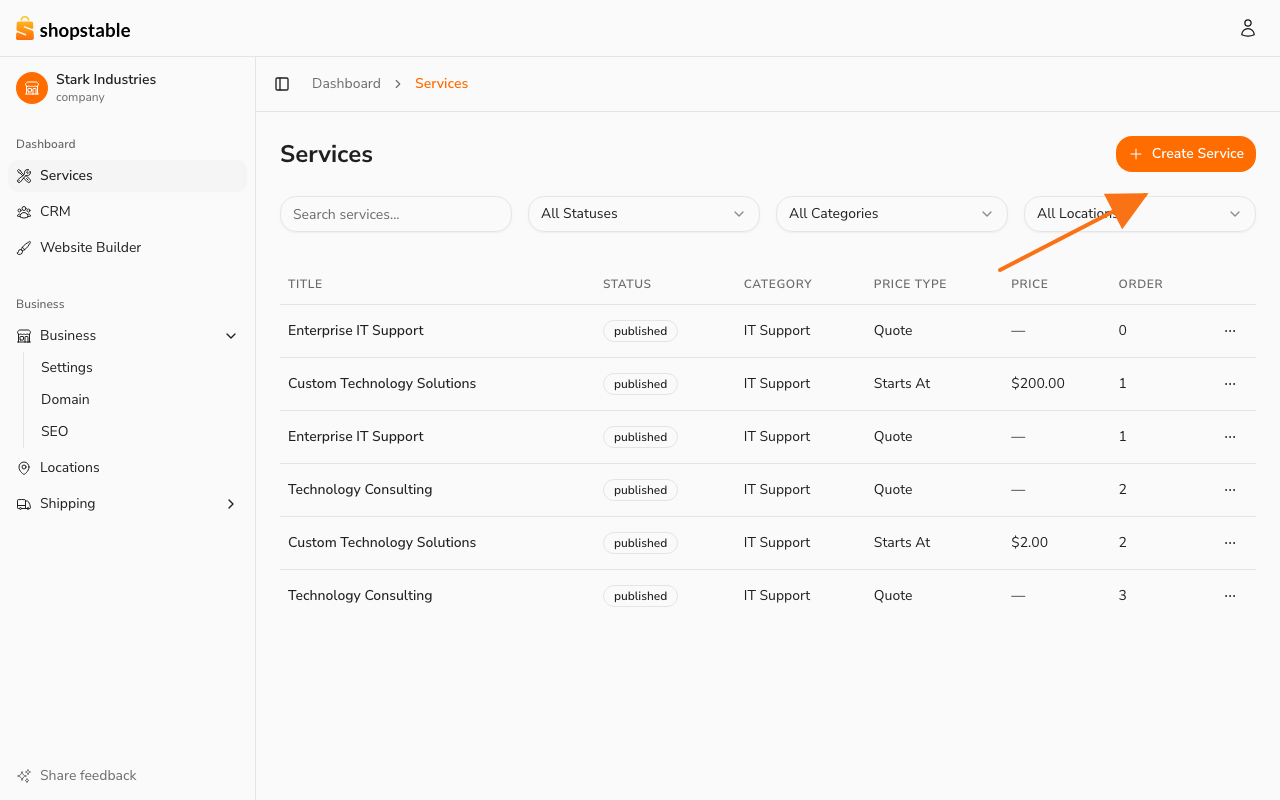
In the dashboard sidebar, open Services and click Create Service (top-right). The service wizard walks you through:
- Title — a clear, specific name (e.g. "Deep Tissue Massage (60 min)").
- How is this delivered? — pick Physical or Online (see below).
- Add a description — what's included, your process, what customers can expect.
- Pick a category — choose from our service-definition library, or leave it as None.
- Set your pricing — fixed price, starting-at price, or custom quote.
- Assign locations — for physical services, which of your locations offer this service. Online services skip this step.
Physical vs. Online Services
Every service is either Physical or Online:
- Physical — Delivered in person at one of your locations or in a service area you cover. Customers see where you operate. You can attach this service to Storefront or Service Area locations (warehouses and private locations are not eligible — they're internal).
- Online — Delivered remotely (video calls, downloads, virtual sessions). No location to attach — the service is available everywhere.
If you attach a physical service to a Service Area location (rather than a Storefront), customers will see "By appointment" instead of an address. The wizard asks you to confirm this before continuing so it doesn't catch you by surprise.
You can change a service from Physical to Online later, but doing so will detach any locations the service is currently attached to.
Pricing Options
ShopStable supports several pricing models:
- Fixed price — A set price for the service (e.g., "$50 for a haircut")
- Starting at — A minimum price that may vary (e.g., "Starting at $200")
- Hourly rate — Charge by the hour (e.g., "$75/hour")
- Custom quote — Customers request a personalized quote
Publishing Your Service
New services are created as drafts. When you're ready:
- Review all the details on the service page
- Click Publish to make it live on the marketplace
- The service will appear in search results and on your business profile
Before you can publish a physical service, attach it to at least one Storefront or Service Area location. Online services don't need a location — they're available everywhere by definition.
If you try to publish a physical service with no attached locations, you'll see a message asking you to add one first. That's a guardrail to keep customers from seeing service listings without a geographic context.
Managing Existing Services
You can edit, pause, or remove services at any time from your dashboard:
- Edit — Update pricing, descriptions, or availability
- Pause — Temporarily hide a service without deleting it
- Delete — Permanently remove a service listing
Tips for Better Listings
- Use clear, descriptive titles — "Deep Tissue Massage (60 min)" is better than "Massage"
- Include what's in the price — Be specific about what customers get
- Add service photos — Show your work to build confidence
- Keep prices current — Outdated pricing leads to a poor customer experience