

Working with Leads
When customers are interested in your services, they submit inquiries that appear as leads in your CRM. Here's how to manage them effectively.
Viewing Leads
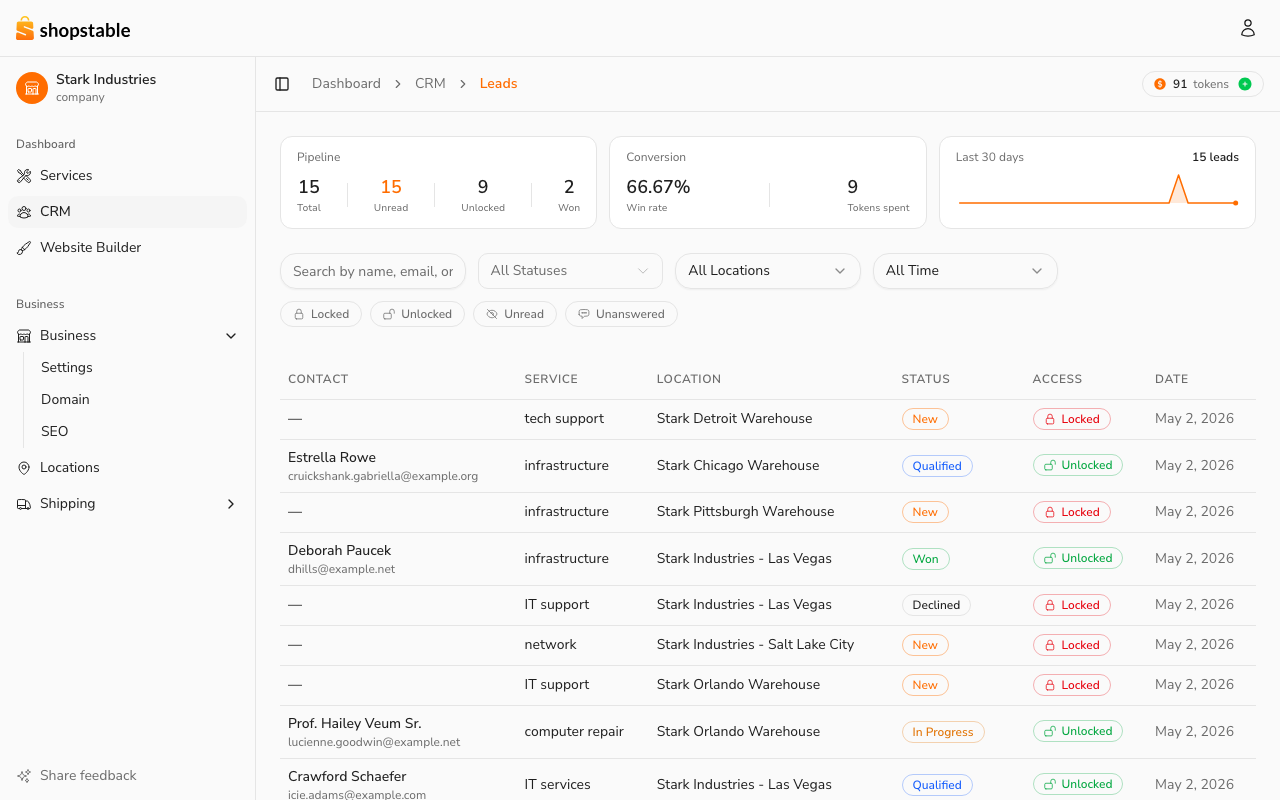
In the dashboard sidebar, open CRM. The page shows pipeline stats at the top — Total / Unread / Unlocked / Won — and a list of every lead below. Each lead row shows:
- Customer name (locked until you unlock the lead)
- The service they're interested in
- When the inquiry was submitted
- Current status (New, Qualified, In Progress, Won, Declined)
Responding to Leads
Quick response times win more business. When a new lead comes in:
- Review the inquiry details
- Click on the lead to see the full message
- Reach out to the customer via their preferred contact method
- Update the lead status to reflect your progress
Lead Statuses
Keep your CRM organized by updating lead statuses as the conversation progresses:
- New — a fresh inquiry that hasn't been reviewed yet.
- Qualified — the lead is a fit and worth pursuing.
- In Progress — actively working with the customer (quote sent, scheduling, etc.).
- Won — converted to a paying customer.
- Declined — the lead was lost or wasn't a fit.
Lead Tokens
ShopStable uses lead tokens to manage how you access customer contact information. Depending on your subscription plan, you receive a monthly allocation of tokens. Each time you unlock a lead's contact details, it uses one token.
Tips for Lead Management
- Respond within a few hours — Leads that are contacted quickly are far more likely to convert
- Keep notes — Add notes to leads so you remember the context of each conversation
- Review regularly — Don't let leads sit unreviewed. Check your CRM at least once a day
- Track your conversion rate — Understanding which leads convert helps you improve your listings