

Managing Collections
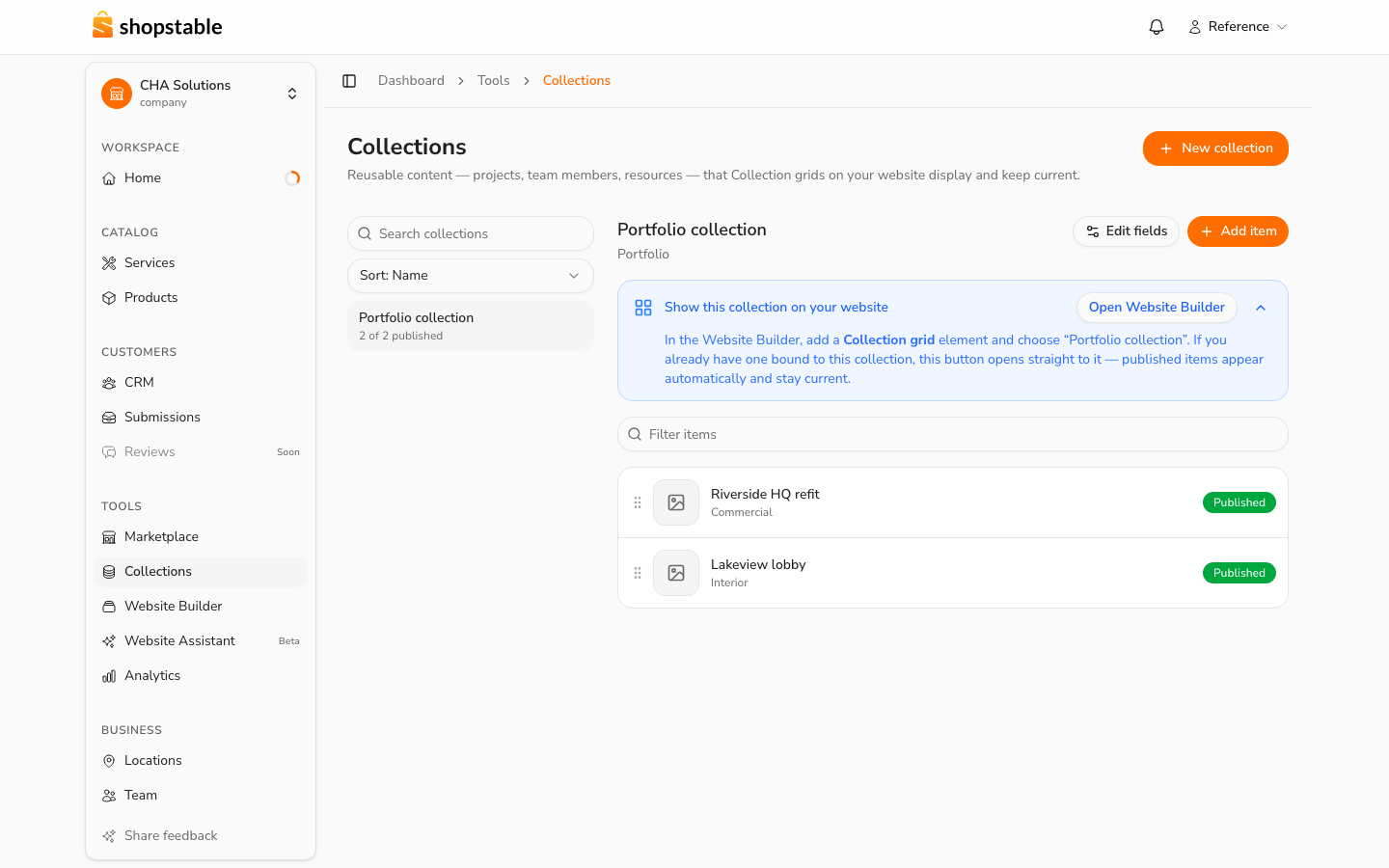
A collection holds content you keep updating: your projects, team members, downloadable resources, partner logos. You edit the content once, under Tools → Collections, and every Collection grid on your website shows it automatically — no page editing required to add your newest project.
Creating a collection
Click New collection and pick the starting shape closest to what you're storing — Portfolio, Resources, People, Partners, or Blank. Each preset comes with ready-made fields and three published example entries so a freshly connected grid shows something immediately. Edit or replace the examples with your real content; they're ordinary items.
Items
Each entry in a collection is an item. Click an item to edit it, or Add item to create one. An item's fields come from the collection — a portfolio item has a title, photo, category, and summary; a team member has a name, headshot, and role.
Items have a status:
- Draft — saved, but not shown on your website.
- Published — visible anywhere a Collection grid shows this collection. If your site is live, publishing an item updates it immediately.
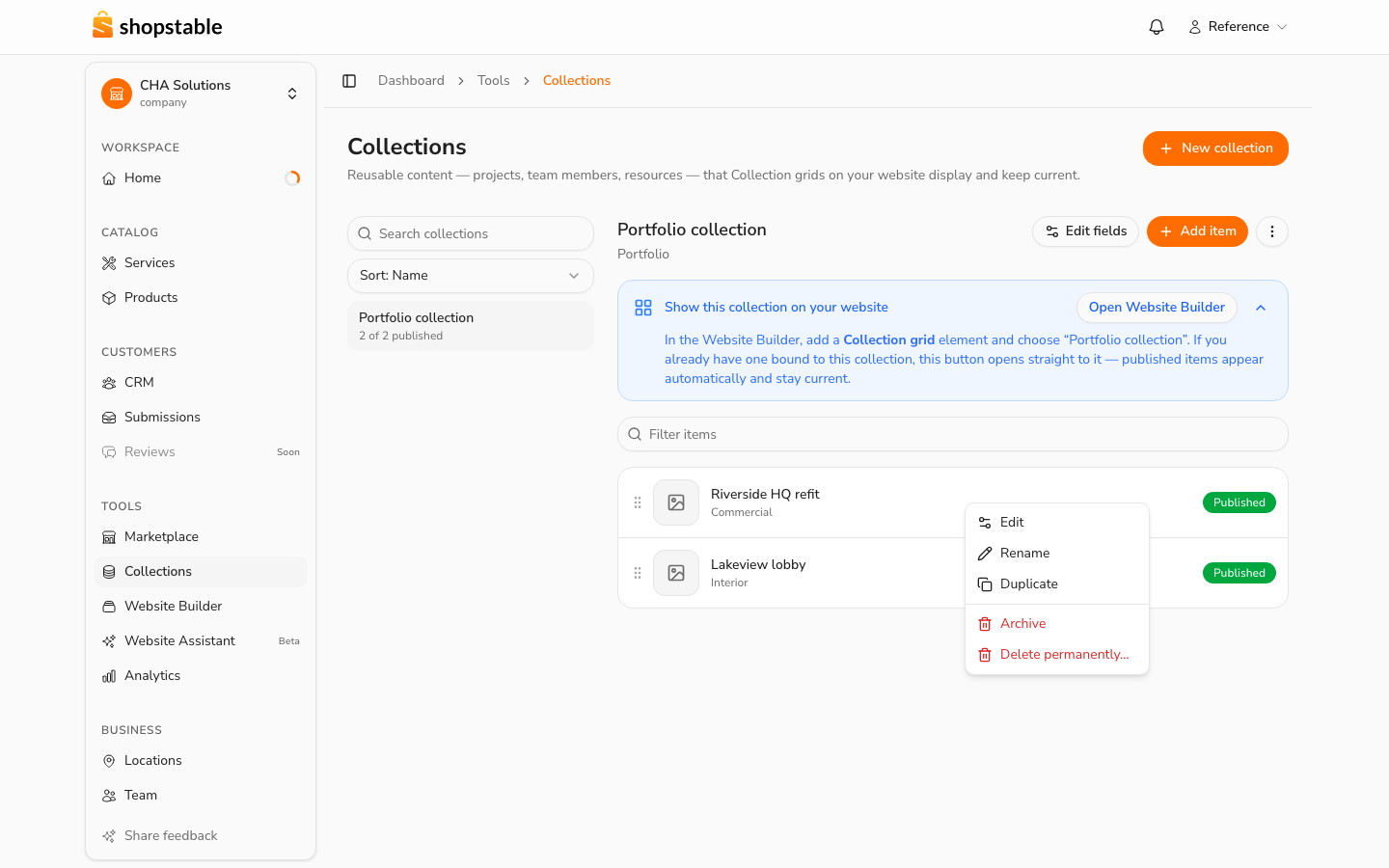
Right-click any item for the quick actions: Edit, Rename, Duplicate, Publish or Unpublish, Archive, and Delete permanently.
Working with many items at once
Use the checkboxes to select several items — an action bar appears with Publish, Unpublish, Archive, and Delete for the whole selection. The chips beside the filter box narrow the list to Published, Draft, or Archived items.
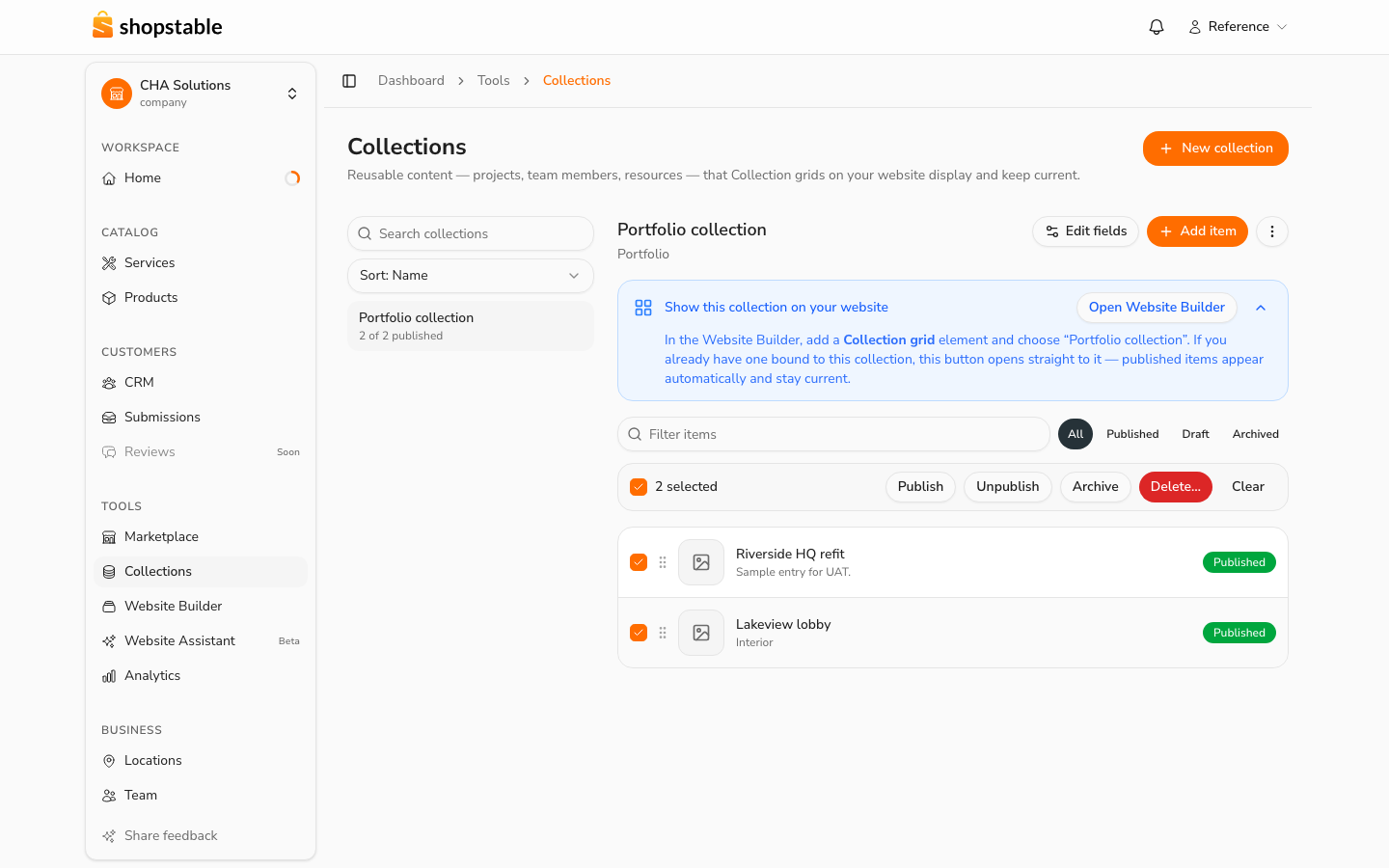
If a bulk publish skips an item, it's because that item is missing a required field — the message tells you which one.
Archiving is always safe: the toast that confirms it has an Undo button, and archived items stay available under the Archived chip, where each one has a Restore button.
Changing a collection's fields
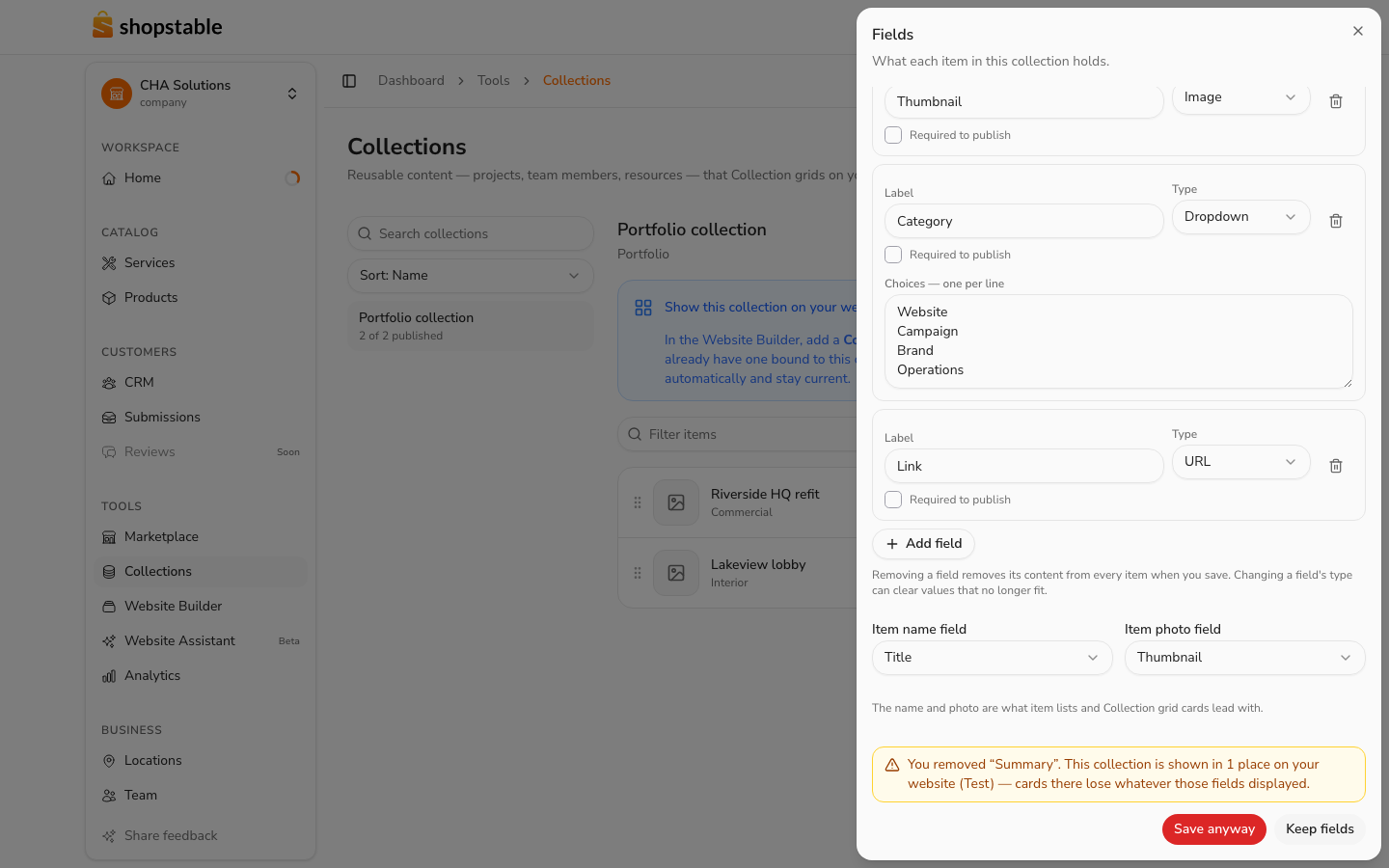
Edit fields opens the collection's structure: add fields, rename them, change their type, mark them required, and drag them into the order you want the item form to follow.
Removing a field is the one edit to be careful with. If the collection is shown on your website, the manager warns you before saving and names the pages that would be affected — Keep fields puts the removed field back if you change your mind.
Renaming, duplicating, archiving
Right-click a collection in the left-hand list — or use the ⋮ menu next to Add item — for the collection-level actions:
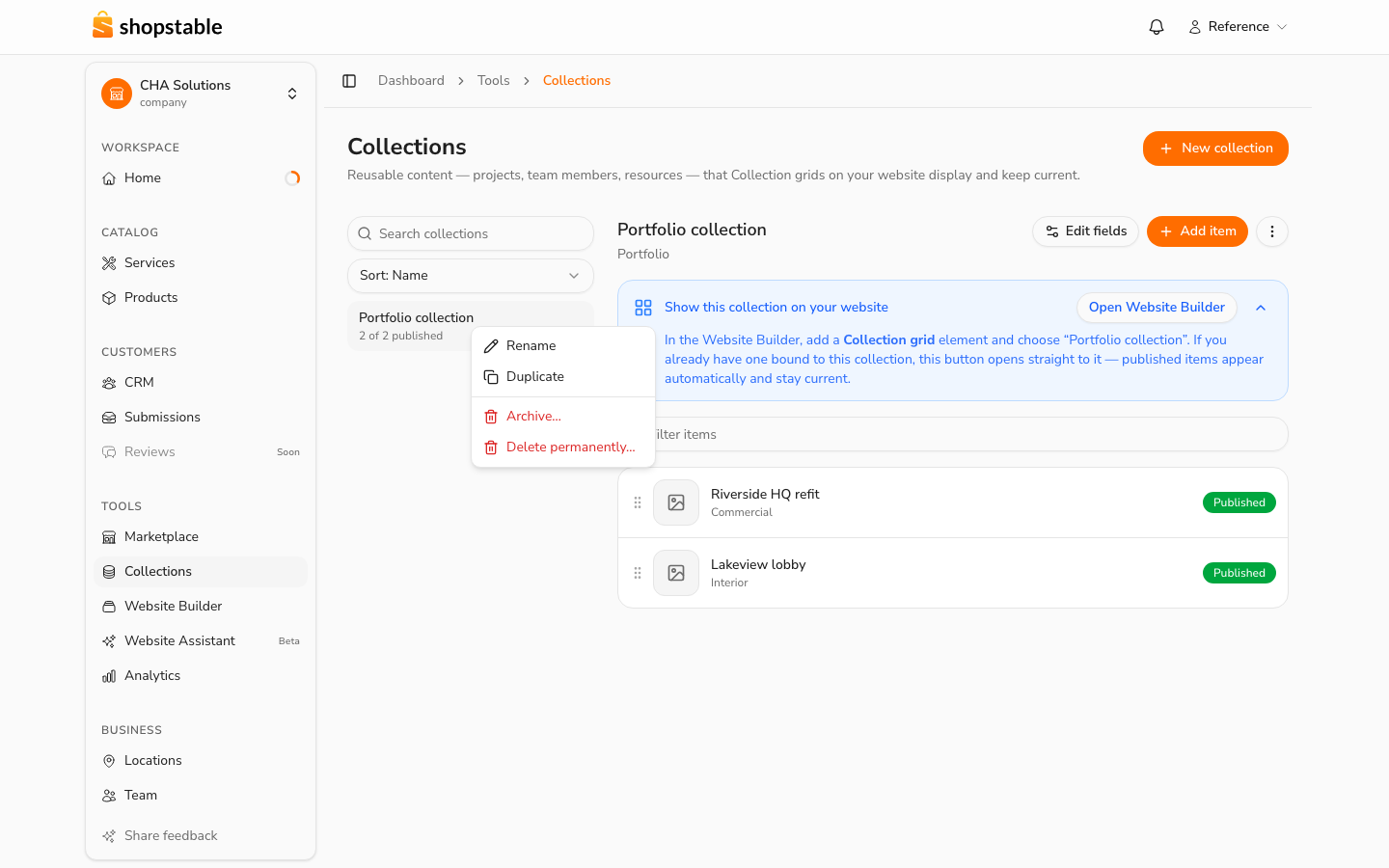
- Rename — edits the name in place. Nothing on your website changes; grids stay connected.
- Duplicate — copies the collection's fields, settings, and items. The copied items start as drafts, so nothing appears on your site until you publish it.
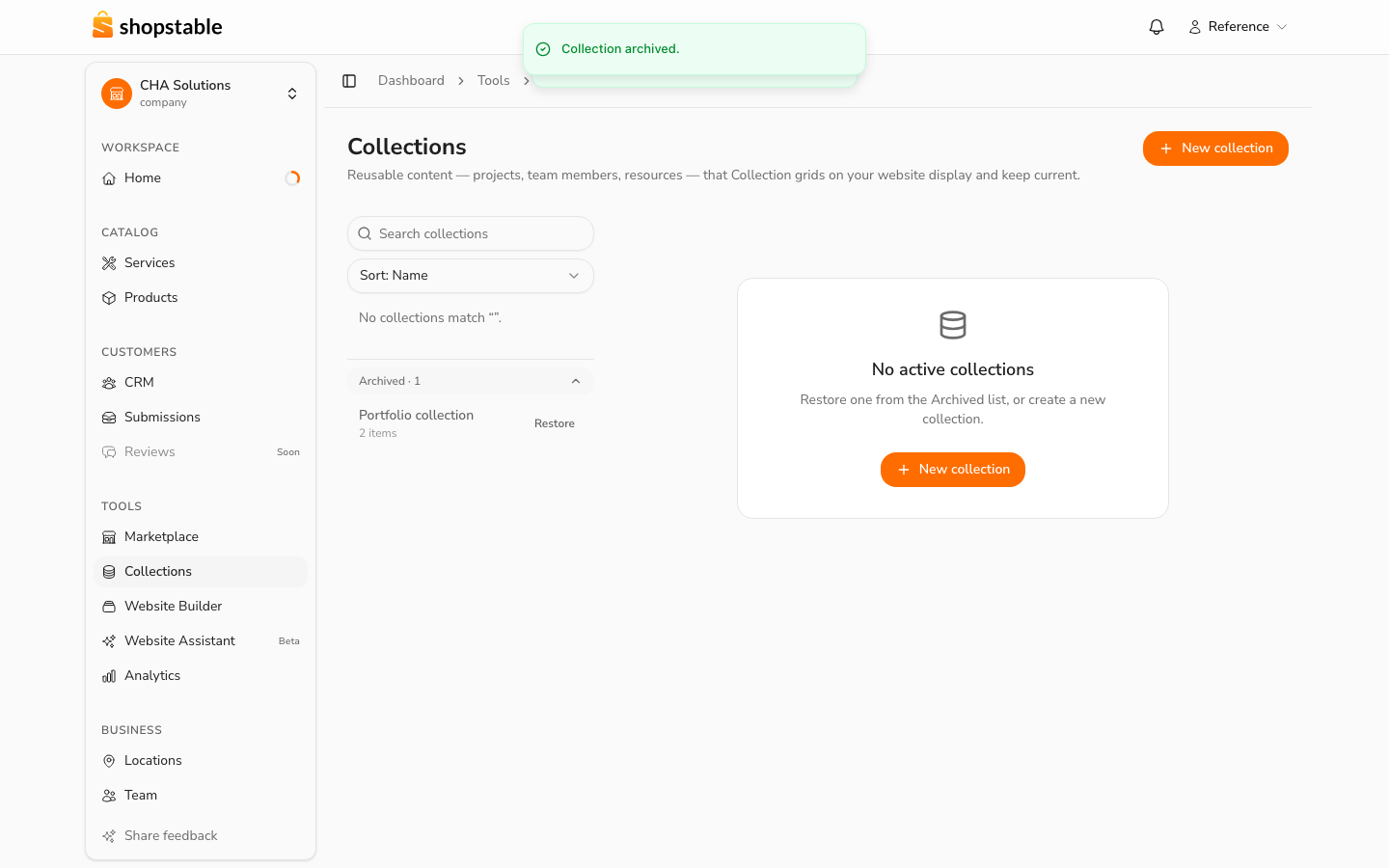
- Archive — removes the collection from view without deleting anything. If it's shown on your website, the confirmation names the sections that would go empty.
- Delete permanently — removes the collection, its fields, and every item for good. Unlike archiving, this cannot be undone, and the confirmation says exactly how much you're deleting.
Archived collections live in the Archived list at the bottom of the sidebar. Restore brings one back — its items return as drafts so nothing reappears on your live site until you decide it should.
Showing a collection on your website
The blue panel above the item list is the bridge to your site. If a page already shows this collection, Open Website Builder jumps straight to it; otherwise it walks you through adding a Collection grid element. The grid shows published items only, and stays current as you edit — you'll never update the same project in two places.
Prefer to talk instead of click? The Website Assistant can create and manage collections with you in conversation.