

Managing Locations
Locations help customers find your business and understand where you operate. You can manage multiple locations from your dashboard.
Adding a Location
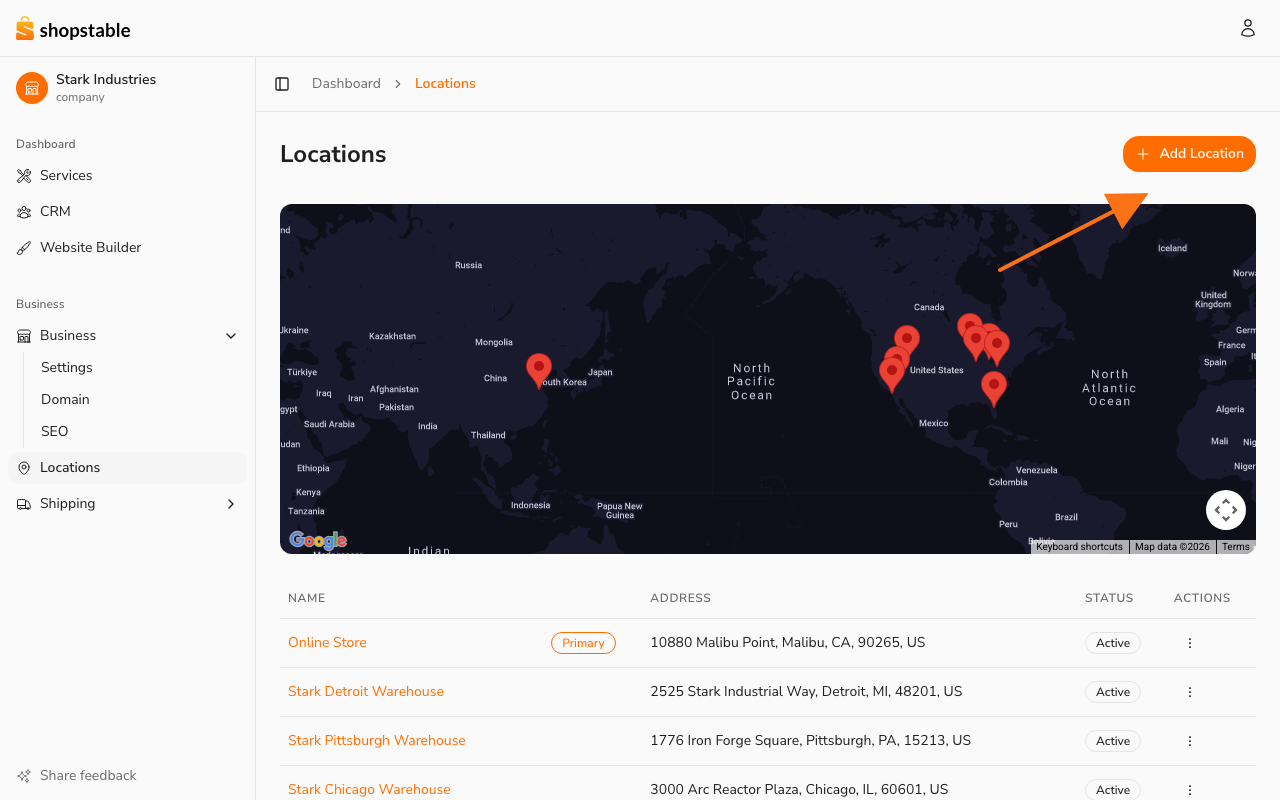
In the dashboard sidebar, open Locations and click Add Location (top-right):
- Location type — pick the type that matches how this place is used (see below).
- Location name — give it a recognizable name (e.g. "Downtown Office", "North Side Studio").
- Address — enter the address. The fields required depend on the type.
- Contact details — phone number and email specific to this location.
- Hours of operation — set your business hours for each day of the week.
Location Types
When you add a location, you pick one of four types. The type controls what's shown publicly and which services can attach to it.
- Storefront — A retail or office location customers visit. The full address (street, city, region, postal code) is shown publicly so customers can find you.
- Service Area — A region you serve at the customer's site (mobile services, in-home work, on-site repairs). City and region are shown publicly; street and postal code stay private. Customers see "By appointment" on any services attached to a Service Area location.
- Warehouse — A fulfillment or shipping origin. Not shown publicly. Used internally for inventory and shipping configuration.
- Private — An internal location used for business records only. Never shown publicly.
You can change a location's type later. Services can only be attached to Storefront or Service Area locations — warehouses and private locations stay internal.
Setting a Primary Location
Your primary location appears prominently on your marketplace listing and is used for search results. To change your primary location:
- Go to Locations in your dashboard
- Click on the location you want to make primary
- Select Set as Primary
Editing and Removing Locations
- Edit — Click on any location to update its details, hours, or contact information
- Deactivate — Temporarily hide a location without deleting it
- Delete — Permanently remove a location (this will also unlink any services assigned to it)
Tips for Location Management
- Keep addresses accurate — Correct addresses improve your search ranking and help customers find you
- Update hours for holidays — Customers check hours before visiting, so keep them current
- Add photos — Location photos help customers recognize your storefront